
The Family Wi-Fi Playbook: Setting Up a Home Network Everyone Can Use
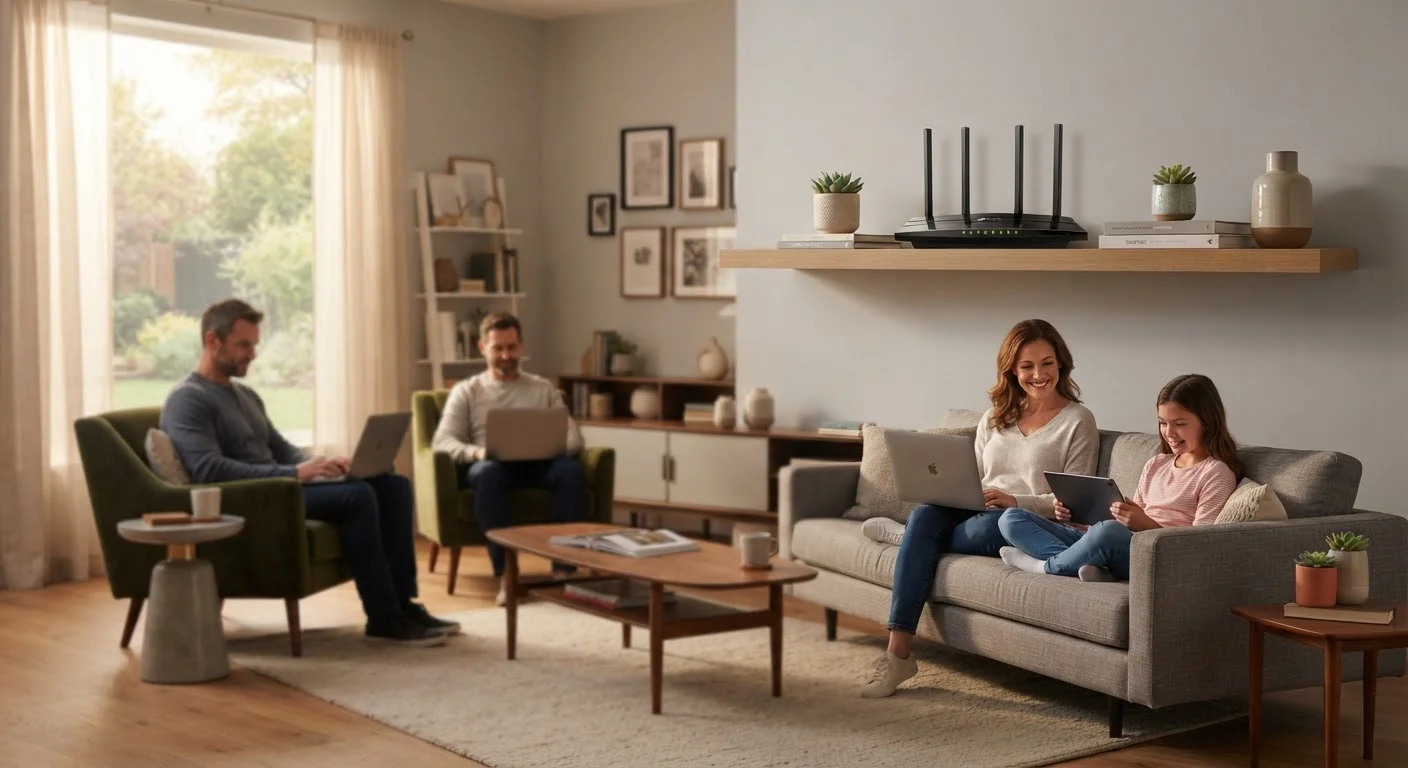
Photo credit: seeksmartgrowth.com
In this article
A practical walkthrough for setting up a reliable home Wi-Fi network that supports streaming, schoolwork, and smart devices simultaneously.
Key Takeaways
- Router placement is the single biggest factor in consistent Wi-Fi coverage throughout your home.
- Most households need both the 2.4 GHz and 5 GHz bands connected and named separately.
- Assigning a guest network keeps smart home devices and visitors isolated from personal data.
- A typical family of four with multiple devices needs at least 100 Mbps of download speed from their ISP.
- Mesh systems cover larger homes more reliably than a single router with a range extender.
Why a family network is more demanding than it used to be
A household running two adults working from home, two students attending video classes, a streaming TV, and a handful of smart devices can have 20 or more active connections at once. Each requires consistent bandwidth and low latency (the delay between sending and receiving data). A network designed for casual browsing in 2015 often cannot handle that load without buffering, dropped calls, and slow file loads.
Before spending on equipment, check your ISP plan speed. A family of four with multiple simultaneous streams and video calls generally needs at least 100 Mbps of download capacity, though more intensive households benefit from 200-300 Mbps or higher. Speed sold by an ISP is the maximum under ideal conditions; real-world speeds are typically lower. If your plan speed is adequate but performance is poor, the router and its placement are usually the cause.
For families choosing devices that will rely on this network, see the guide to choosing between tablets and laptops for school for context on how different device types use bandwidth.
What you will need
Step-by-step setup
Position your router in the right spot
Place the router as close to the center of your home as possible, elevated off the floor, and away from thick concrete walls, large appliances, and microwave ovens. Wi-Fi signals radiate outward in all directions, so a corner or basement location wastes roughly half that range.
If your ISP's coaxial or phone-line wall jack is only in one room, position the modem there and run an ethernet cable to the router placed in a more central location. That short cable run dramatically improves whole-home coverage at no added cost.
Connect and power up the hardware
Plug the modem into the wall jack and connect it to your router's WAN (wide area network) port, usually labeled differently from the LAN ports, often in a different color. Power on the modem first and wait about 60 seconds for it to sync with your ISP before powering the router.
Most routers indicate a successful connection through a solid or slowly blinking LED. Consult the light-pattern guide on your router's label if the status is unclear.
Log in to the router admin panel
On a connected device, open a browser and type the router's admin address, typically 192.168.1.1 or 192.168.0.1, into the address bar (not the search bar). Enter the default admin credentials printed on the router label.
Once inside, navigate to the wireless settings section before making any other changes.
Set distinct names for the 2.4 GHz and 5 GHz networks
Rename each band to something your household will recognize, such as "HomeNet_2G" and "HomeNet_5G". The 2.4 GHz band reaches farther and passes through walls better, making it suited for smart home devices, security cameras, and devices far from the router. The 5 GHz band is faster at shorter ranges and suits streaming devices, gaming consoles, and laptops in the same room or adjacent rooms.
Keeping the names separate lets you deliberately connect each device to the right band rather than letting the router decide automatically, which it sometimes gets wrong.
Set a strong Wi-Fi password
In the wireless security section, choose WPA3 if your router supports it, or WPA2-AES as the next option. Set a password of at least 12 characters mixing letters, numbers, and symbols. Avoid the router's default password and avoid your home address or family names.
Apply the same password-strength approach to the admin panel itself. The default admin credentials are publicly documented for most router models and should be changed immediately.
Create a separate guest network
Most routers include a guest network feature in their admin panel. Enable it with a different name and password from your main network. Connect smart home devices (thermostats, bulbs, cameras) and any visitor devices to this network.
This separation means that if a smart device or a guest's phone is compromised, it cannot access the computers, phones, and storage on your primary network. For families with kids using parental controls on their devices, the guest network also prevents a visiting friend's unrestricted device from affecting the household setup.
Test coverage and address dead zones
Walk through every room with a phone connected to the Wi-Fi and load a speed-test site or app. Note any rooms where speeds drop significantly or connection drops entirely. Bedrooms and home offices far from the router are common problem areas.
If a single router cannot cover the space, a mesh Wi-Fi system (a set of two or three coordinated nodes) delivers more consistent coverage than a range extender, which effectively halves available bandwidth for devices connected through it. For families with streaming TVs and school devices in multiple rooms, mesh is usually the more practical investment.
Keeping the network reliable over time
Restart your router and modem once a month. Many performance complaints that seem like ISP problems resolve with a simple reboot, which clears the router's memory and refreshes its connection. Most routers have a reboot option in the admin panel, or you can unplug power for 30 seconds.
Enable automatic firmware updates in the router admin panel if that option exists, or check the manufacturer's support page every few months. Firmware updates often patch security vulnerabilities in addition to fixing performance issues.
Periodically review the list of connected devices in your admin panel. Unknown devices on your main network are a sign that your password may need to be changed. For households with children's devices connected, this also ties into managing parental controls across devices and platforms, since some controls apply at the router level.
If devices around the house regularly struggle with slow speeds despite adequate ISP speeds, consider upgrading to a router with Wi-Fi 6 (802.11ax) support. Wi-Fi 6 handles multiple simultaneous device connections more efficiently than older standards, which matters in households with many connected devices rather than just one or two.

Author
Electronics Editorial Team
Electronics Editorial Team is the collective byline for our editorial team and contributor network. Articles published under this byline or an editorial pen name are researched, written, and reviewed according to our editorial standards for clarity, consistency, and independence before publication.
View all articles →